How can you isolate a problem? - The checklist
If there is a problem, this checklist should help you identify the cause of the problem.
Before asking a question in the forum, you can work through a few important points yourself. In this way, time delays can be kept as low as possible due to necessary queries.
In order not to have to query the same information time-consuming, we have summarized the most important points as a checklist.
Remember: the more detailed the information, the faster and more targeted help can be.
1. Used program versions
The two most important informations are the used Joomla and JoomGallery versions. This information is almost always needed.
- Joomla! version, e.g. 3.9.19
- JoomGallery version, e.g. 3.4.1
Please give the complete version number. Information like 'current/latest' is not very helpful here. 
2. Important system information
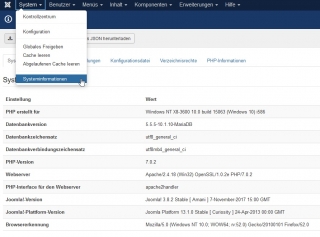
A screenshot of the most important system information:
Find it here: System >> System Information
3. Increase the error display in Joomla
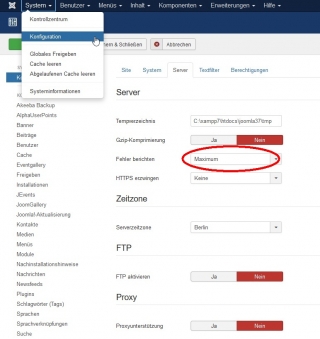
In the Joomla! Configuration, set the Error Reporting to 'Maximum'. This is particularly helpful with blank white pages. Usually more detailed error messages are then displayed.
You can find it here: System >> Configuration >> 'Server' tab
4. Check the error console in the browser
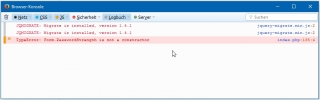
Any script errors that occur are displayed (usually in red) in the error console of the browser. A wide variety of malfunctions can occur due to script errors.
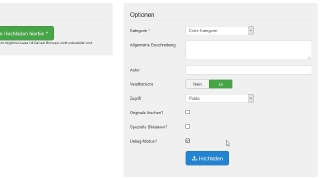
5. Activate 'Debug' mode during upload
Activate the 'Debug Mode' check box before clicking on Upload. Information about what is happening in the background is then displayed.
6. Check in the Maintenance manager
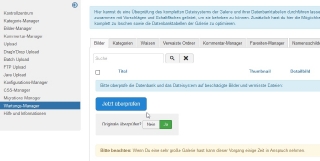
Carry out a check in the Maintenance manager of the JoomGallery. Normally you should check the original picture and set it to 'yes'. Unless you have the original images deleted for whatever reason.
You can find it here: Hier zu finden: Components >> JoomGallery >> Maintenance Manager
7. Make CSS changes
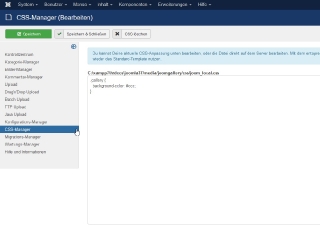
With the CSS Manager you can easily make changes that affect the look of your website.
The changes in the CSS Manager are update-safe, i.e. these CSS changes will be retained in the event of an update.
You can find it here: Components >> JoomGallery >> CSS Manager
8. Check user rights
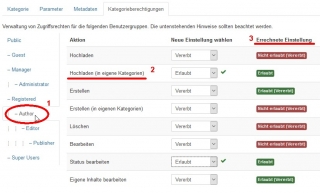
If there are upload problems in the front end, the following settings should be checked and a screenshot should be posted for comparison.
Open the category you want to upload to. Switches to the 'Category Rules' tab. On the left, select the user group (1) to which the user belongs. Now check the 'Calculated Setting' (3) that are displayed for each Action (2).
Example: