


Anleitungen JG 3.x
- Details
This article is about the two plugins JoomAdditionalImageFields and JoomAdditionalCategoryFields. With these plugins, you can create your own fields for additional information on images/categories.
These plugins can be compared with the functionality of the Custom Fields from the Joomla! core, although the handling is quite different.
Configuration of the JoomAdditionalImageFields plugin
After installing and activating the plugin JoomAdditionalImageFields, a warning message appears when opening an image in the image manager, stating that the XML file 'additional.xml' has to be created. The easiest way to do this is by navigating to the installation directory of the Joomla installation with an FTP client and from there to the directory 'plugins/joomgallery/joomadditionalimagefields/additionalfields/'. Here you will find a file named 'additional.tmp.xml'. This file is a template for the manifest file of the plugin. Now the next step is to create this manifest file with the name 'additional.xml'.
Within the manifest file, fields can be defined using the XML synthax. Each of the defined fields will take additional image information later. You can define as many fields as you like among all the standard form field types of Joomla! In the template file 'additional.tmp.xml' some exemplary fields are already defined. An overview and description of all available standard form field types can be found in the official Joomla! documentation:
https://docs.joomla.org/Standard_form_field_types/en
Once the manifest file has been edited, it should be uploaded to the 'plugins/joomgallery/joomadditionalimagefields/additionalfields/' directory again. From now on, all fields defined in the manifest file will be displayed in the edit view of the image in the second tab named 'Parameters'.
Configuration of the JoomAdditionalCategoryFields plugin
The configuration of the plugin JoomAdditionalCategoryFields follows the same procedure as for the plugin JoomAdditionalImageFields. The path of the manifest file is 'plugins/joomgallery/joomadditionalcategoryfields/additionalfields/'.
Example
As an example, we will now create an additional field for images, which stores a short description of the image. For this purpose, the manifest file 'additional.xml' is created with the following content:
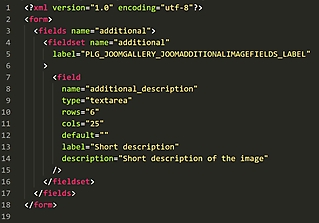
The created field is displayed in the edit view of the image as follows:
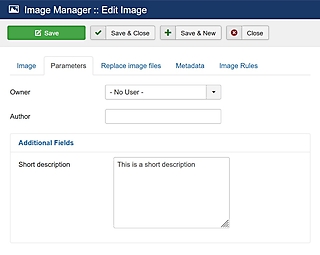
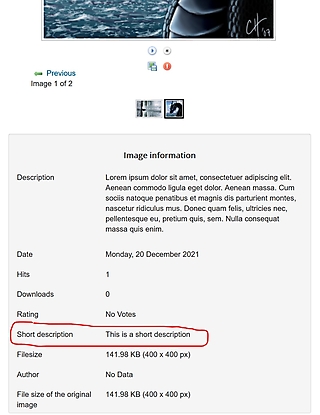
In the created field of the type 'textarea' the entered text is saved and displayed in the detail view of that image as following:
Summary
- Installation and activation of the plugin.
- Download the manifest template file 'additional.tmp.xml' via FTP.
- Copy or rename the manifest template file to 'additional.xml'.
- Edit the manifest file named 'additional.xml' - Define the additional fields.
- Upload the completed manifest file.
- Fields are now displayed in the edit view within the second tab and can be populated with information.
- Details
Tutorial: Remove the word 'Description' in the category view
It's very easy with a 'Template Override'. A general description of how template overrides work can be found here.
In this tutorial we assume that
1. You are using the 'default' template from JoomGallery
2. Your used template is the 'protostar' template
Otherwise the file and folder names must be adapted accordingly.
Usually the category view looks like this:
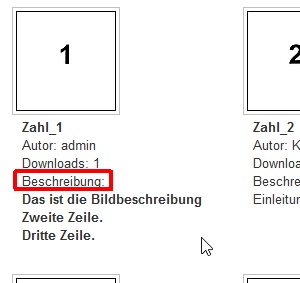
This is how it will look after our little change:
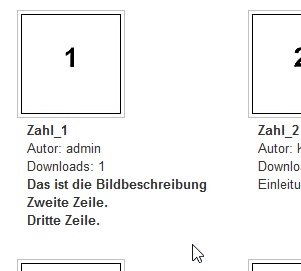
First copy the file
components/com_joomgallery/views/category/tmpl/default_images.php
in the folder
templates/protostar/html/com_joomgallery/category
If the target folder does not yet exist, it must be created accordingly.
With a suitable editor then you open the file default_images.php in the folder templates/protostar/html/com_joomgallery/category.
From about line 75 you will find the following lines of code:
if($row->imgtext && $this->_config->get('jg_showcatdescription')): ?>
<li>
<?php echo JHTML::_('joomgallery.text', JText::sprintf('COM_JOOMGALLERY_COMMON_DESCRIPTION_VAR', $row->imgtext)); ?></li>
Now change the line 77 so that it looks like this:
if($row->imgtext && $this->_config->get('jg_showcatdescription')): ?>
<li>
<?php echo JText::_($row->imgtext); ?></li>
Then just save & close the file.
The main difference to the code before is that the language constant COM_JOOMGALLERY_COMMON_DESCRIPTION_VAR has been removed, and with it the text 'Description'.