


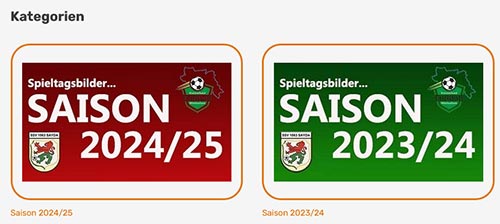
 We have a category to which no random image should be assigned, but rather a specific image should always be displayed for this category (main category or subcategory).
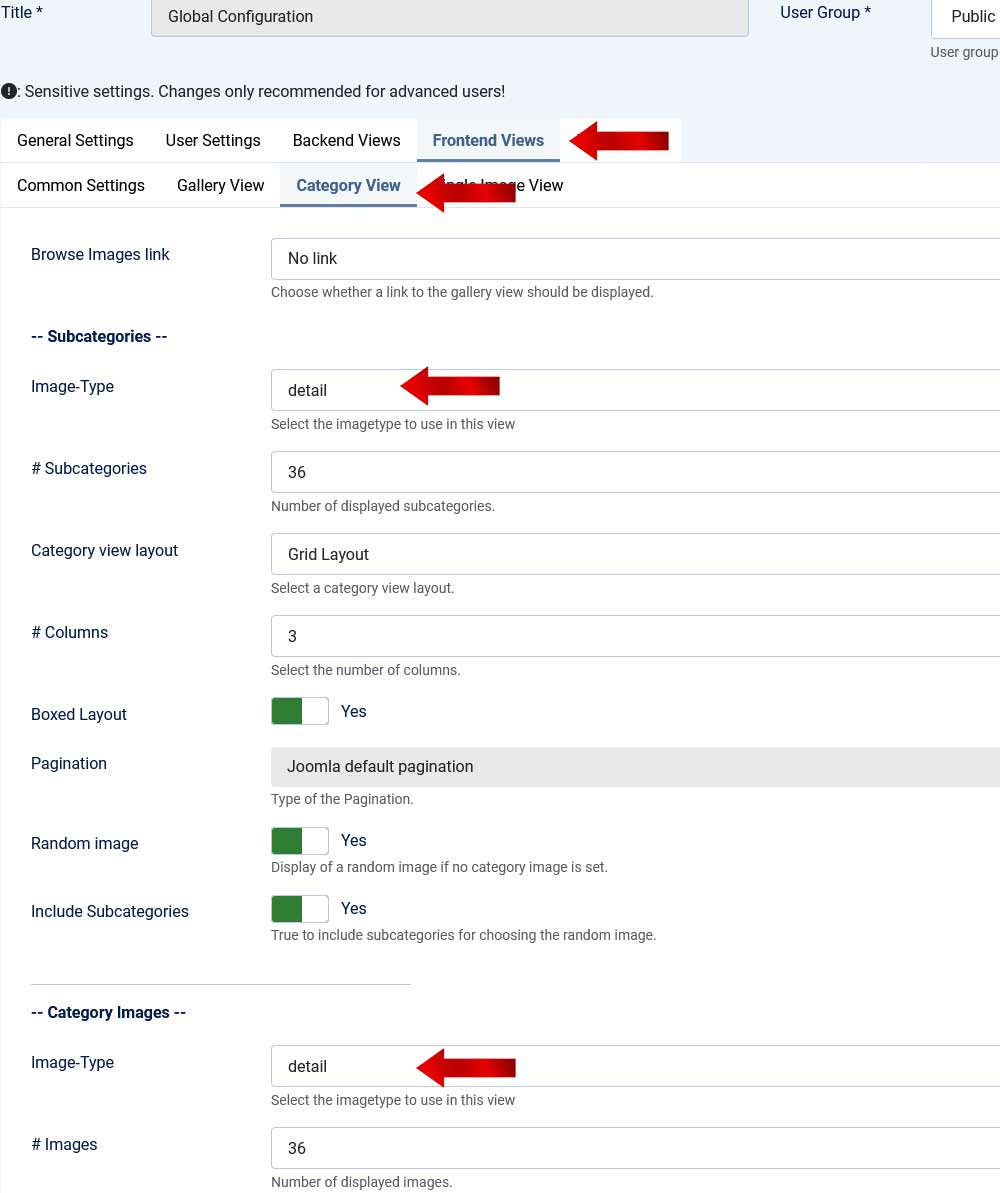
 First, look in JoomGallery Configuration under the tab: "Frontend Views" -> "Category View" to see which "Image Type" is assigned. In our example, it is: "detail". This will give you an idea of the approximate dimensions the category image should have so that it is not too large and unnecessarily block storage space or waste loading time.
Under the tab "General Settings" -> "Image Processing" you can see under "Image Processing" -> "Settings" which size is stored for "detail". (in our case it's "by width" and 400 pixels wide have been selected. The image does not have to be larger in width)
Now you select a suitable image for your category on your computer. In our case, I will create an image for a category called "Season 2024/25".
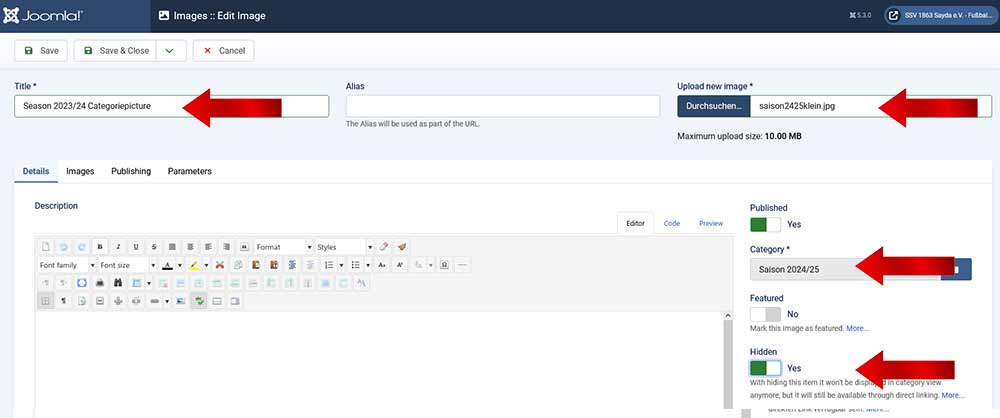
Once the image is saved or found on your computer, go to the Joomla Gallery in the Joomla backend and click on "Images". In the upper area you will find the "NEW" button. After clicking on the field, you can upload a new image. (See: Upload image here…)
In this image mask, enter your desired data and select the image from your computer. You then assign the image (on the right side of the input mask) to the desired category (in my case: "Season 2024/25").
IMPORTANT: Now you must set the image to "YES" using the "Hidden" switch. Otherwise, the image will also be displayed directly in the category, which is not what we want.
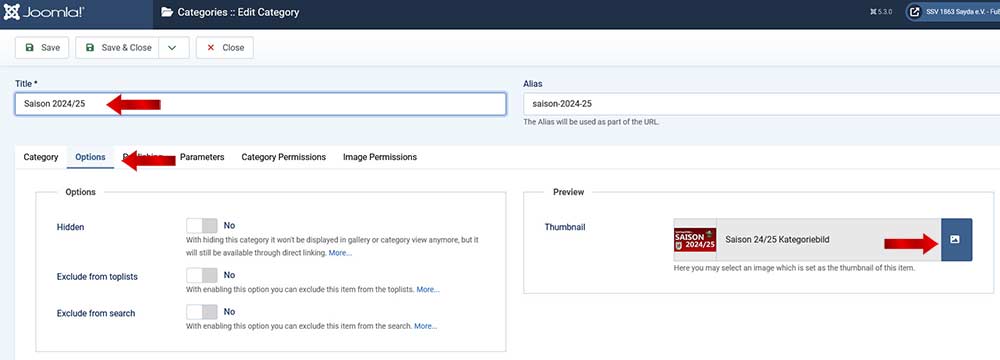
Once you have saved the file and the image has been uploaded, go to the "Categories" section in JoomGallery. There you select the category to which you want to apply the image. By clicking on the category name (in our case: "Season 2024/25") you will get to the category editing screen. And there in the second tab - it is called "Options" - you will find the "Preview" field. Using the blue image icon you can now search for the image you uploaded earlier in your JG images. By clicking on the image name you can now see it as a thumbnail in the input screen.
DON'T forget: You can now save it using the "Save & Close" button in the top left corner.
Then check your image gallery (frontend) to see if the image is displayed in the desired category.