


General Information categories:
Categories organize the images into logical units. They are primarily responsible for system-relevant and administrative things.- Administrative organization of images
- Inheritance of permissions (Permission, ACL)
- Inheritance of parameters (Configs)
- Inheritance of visibility (Hide, Password, Access)
- Collective information for images
- System paths. Where are the image files stored in the file system?
- Categories can also be used to display galleries per category
Creating a category
After installation,...After installation, you will find an automatically created category in the JG menu under "Categories": "Uncategorised"
You can theoretically use this or rename it.
At the top of the menu there is the button "+ NEW". If you click on it, the category creation form opens.
First of all, you have to give the category a "title", i.e. the name of the category. Example: You have travelled to various cities and want to present the individual cities (e.g. London, Berlin, Prague). Here I would give the main category the title: "Cities".
The "alias" is automatically generated from the title when you save. But you can also set it yourself. It may influence the link path of your category later on. So you can initially have the alias assigned automatically.
In the CATEGORY Tab:
Description: Add a description of the content in the category as desired (optional).
On the right there is now the selection:“Parent category”. If you already have a main category, you can enter it here. In our case, leave it blank, because “Cities” is the main category.
“Published”: Here you specify whether the category should be visible. In most cases, leave it as "Yes".
"Access level": Allows you to choose as a default which registered and logged in Joomla users can see the images. The "Public" setting leaves them visible to everyone.
The "Password" field gives you the option to protect your category. After entering the password (you can see how secure the password is with a color bar below -> green is very good), only the users in the frontend (on your website) who know the password can see the category!
The "Language" field only appears if you have a multilingual site.
In our case, we now first save the main category: "Countries" using the button above: "Save and Close"
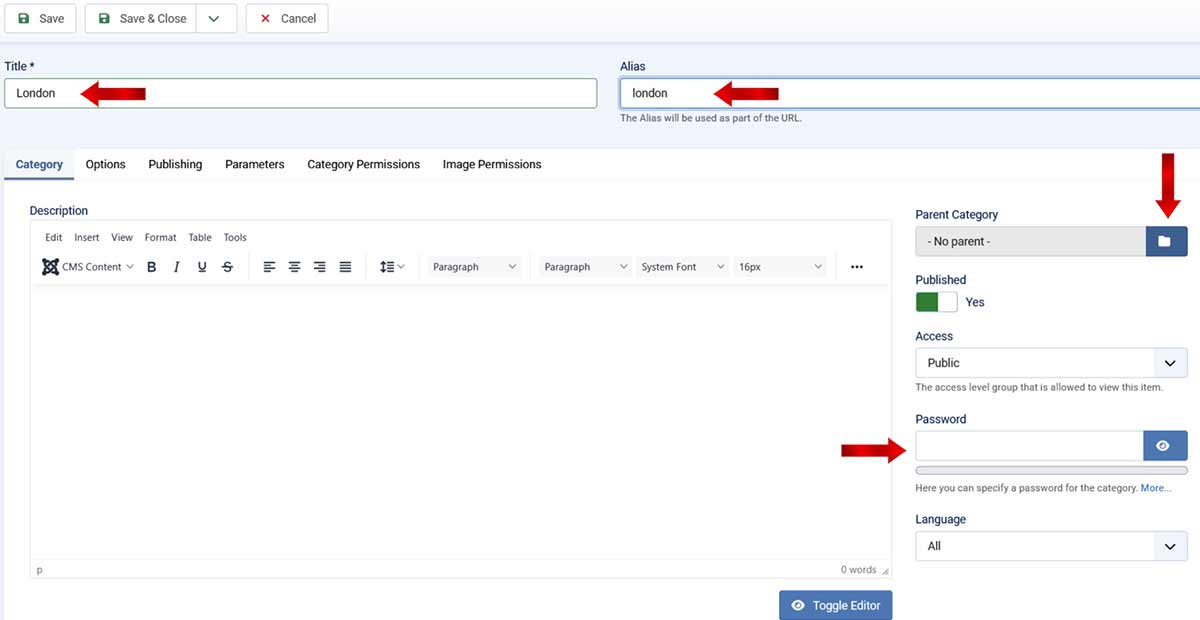
Create a subcategory for: "Cities":
Now we do the same thing again: Click on "+ NEW" and enter the title for the subcategory: e.g.: "London" in the still empty formula.
Alisa, Description, Published, Access Level, Password and Language are the same as described above.
Now we have to fill in the field: “parent category”. By clicking on the folder symbol, we select the category: “Countries” in our example case. (Clicking on the “Save” button saves the category for now, but does not close the form immediately.
After “caching”, we look at the other tabs:
In the Options Tab:
Most of the setting options are already provided with inline help, i.e. a short explanation. A lot is explained by this. Is JoomGallery already translated into your language? That should be enough for you. Otherwise it is in English Language
but briefly explained again:
"Hidden": Can only be reached via a known link but cannot be seen.
"Exclude top lists": If you have created a top list in your JoomGallery 4 and have selected entire categories, you can exclude this specific category, in our example: "London" from it here.
As of today, there is no"Search" in JoomGallery 4, but when it is available, you can exclude this category from the search results with a setting: "NO".
On the right under"Preview" you can select an image as a preview image for this category. This image will then be displayed only in the backend, not on your website in the category overview for this category. It can always be changed, like most things you set.
Tab Published:
Some information about the images, you can only manipulate the“Creation date”.
Tab Parameters:
Here there are self-explanatory options for doing something with the category.
The setting: “Global () explained:
“The current global parameter is calculated based on the selected configuration inheritance and the configuration set dedicated to the current user.
The parameter used at the end can be different!"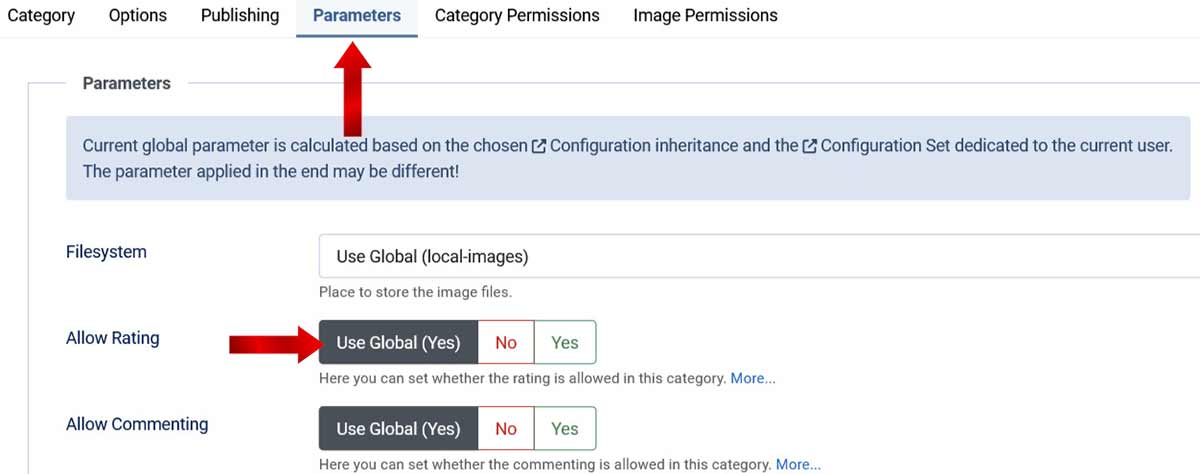
The two Tabs Category- and Image-permissions:
interfere fundamentally with the editing of the category. You should only do this if you know what you are doing. Various permissions can be changed for various user groups or registered and logged in users of the website who may contribute to the design of the JoomGallery. Here the settings are only possible for this special "London" category.