* The term "tags" (pronounced [taks]) comes from English and means "keyword" or "label".
* Tags are used on the Internet to categorize content and topics.
* In this case, the categorization serves the consumer. This is because they can use it to find content or to find out about the content.
* An example makes this clearer:
A picture gallery manager uploads a picture to his gallery "with an airplane as the content". To do this, he uses the tags "airplane", "air" and "technology". As a reader, you can find this picture using the tags via search functions and at the same time know the topic of the picture straight away.
Functional explanation:
After installing JoomGallery 4, there are no automatically created tags.
You can create a new TAG using the "+ NEW" command in the top menu bar. Click on "+ New" to open the tag mask. 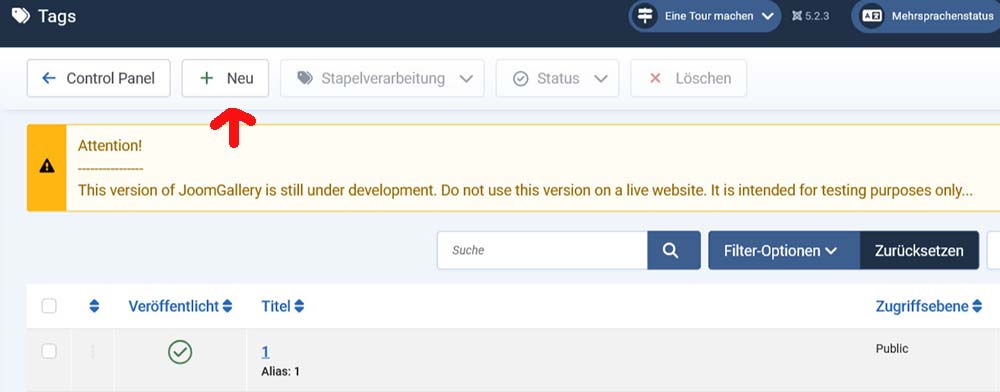
You now have to enter a "title".
e.g. "Dog", or "Plant" or "Large". Use a suitable name for how you want to categorize your images. For example, if you want to present pictures of holiday destinations, use country names: If you have pictures from Germany, use the title name: "Germany" or "England" or "South Africa"...
The more precisely you want to sort, the more precisely you have to name the TAGS.
For our example, you can use regions or cities, districts as tag titles.
You can also assign multiple tags to individual images later. For example, for a picture of a meadow of flowers, use previously created tags such as: "Germany", "Bavaria", "Green" and "Plants".
It's best to think carefully about which and how many tags you want to create.
The alias is created automatically, but you can also enter/create it yourself.
This "alias" is used to specify the path and should only be changed with caution.
It is possible to enter a "description" of the tag, but it is not displayed and is usually not necessary.
You can also select under: "Published" whether the TAG is then visible.
This should be the case in most cases. Unless you do not want to include certain images in the tag search.
You can also change the "Access level".
Here, only users who are registered and logged in to the website, with the various rights, can see the TAGs later.
Under the "Language" selection, you can only activate the tags for certain languages if your website offers several languages.
Image: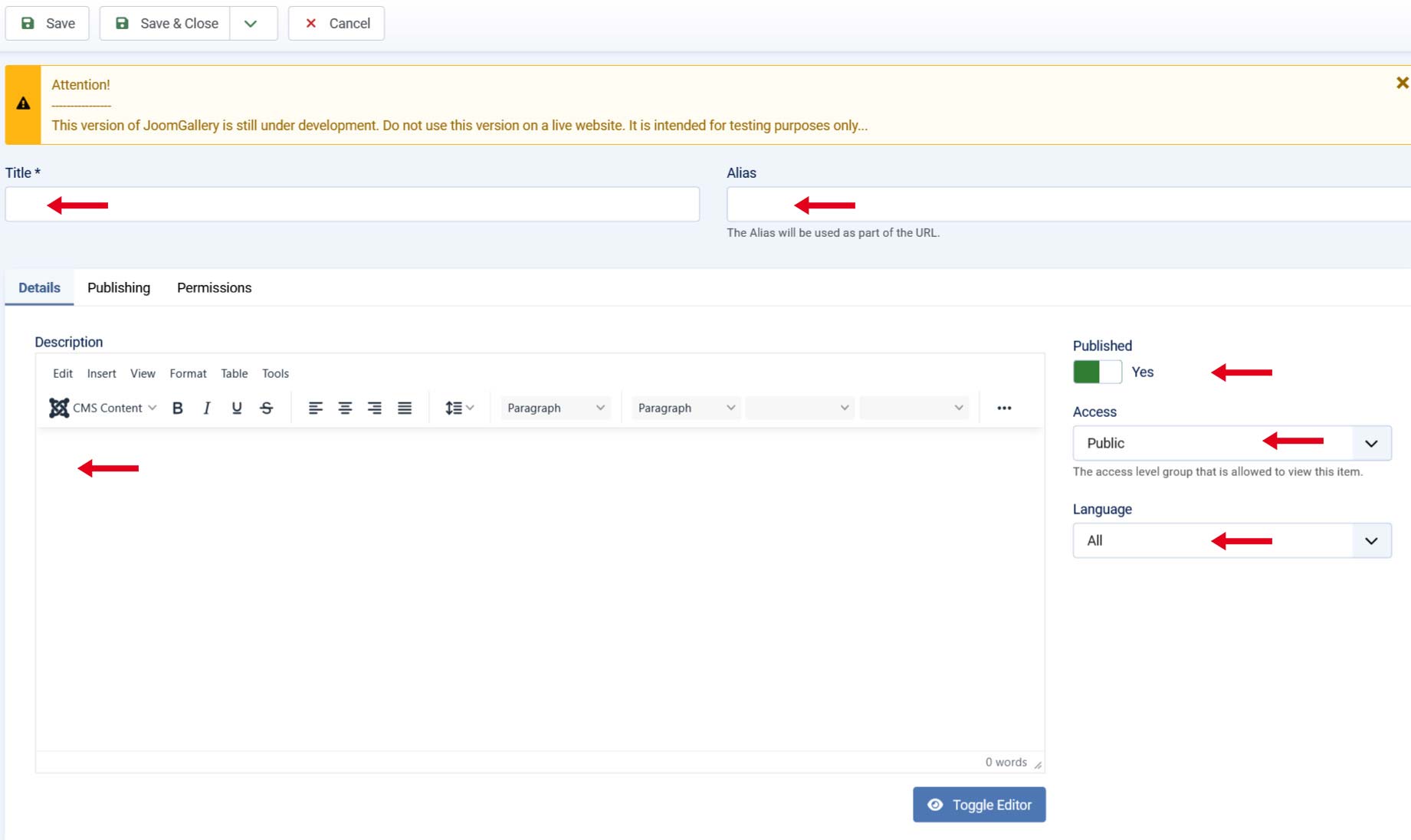
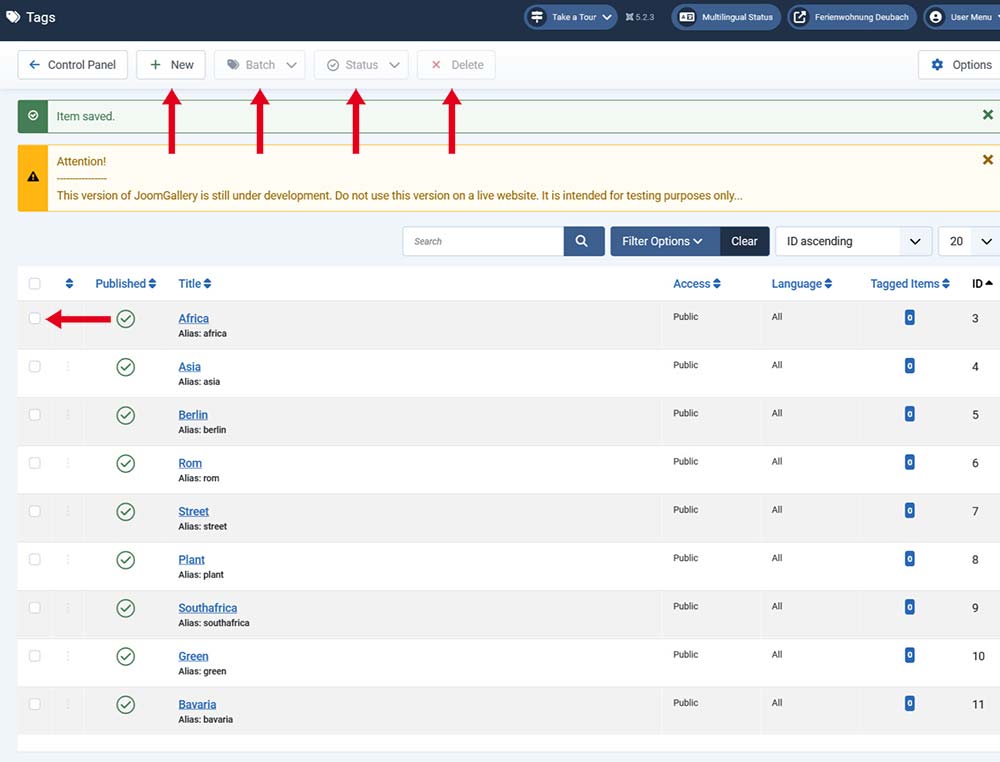
If you have created as many tags as you like, you can make changes to the TAG at any time in the main view by CLICK on the title of the TAG. If you mark a TAG with the box in front, you can edit it using the top menu bar.
- For example, you can copy it as often as you like using the "Batch Processing".
- You can publish or hide several TAGs at once using the "Status" command.
- You can delete one or more TAGs using "Delete". However, you must always select the desired TAGs using the small square. click.
Image: