


Testing new features and bug fixes
JoomGallery 4.x is constantly being developed. Either reported bugs need to be fixed, or new features are being incorporated into the JoomGallery 4 code.
You don't have to be a programmer or graphic designer to help the JG and friends community.
WHAT CAN YOU DO?
Either you test upcoming, finished new versions (called RC versions) or you test bug fixes or new features/changes.
This is generally easier than you think!
Where?
Development is carried out on the platform/website "Github".
You don't need access to read along. To help with testing, you do need Github access.The testing versions, which usually always include a complete JoomGallery test package, can be downloaded as follows.
Video for test package download
What do I do now!?
In the top menu, you’ll find several tabs: Code / Issues / Pull requests / Discussions / Action / Projects / Security and Insights.
We need the “Pull requests” tab, which we click on if it’s not already selected.
- Explanation: A “Pull request” will from now on be abbreviated as “PR” here!
In the displayed list, you’ll see all the individual Pull Requests (PRs) that can be tested, listed one after the other. At the beginning of each is a brief description or title explaining what the change/improvement is about.
- Simply click on the description (title) of the PR—in this example: “Remove forgotten J6 deprecations”.
(This PR will likely no longer exist when you try this, and is only shown as an example). - In the new view, everything is laid out like a forum. At the top is the initial post by the creator of the PR, and below that—if available—are the comments. In the first post, the developer explains what the PR is about.
- Scroll all the way down and open the section "All checks have passed". Then click on "PR Build Artifact / build-pr-zip (pull_request)".
- In the new view, click on "Summary" in the top-left navigation area.
- A new view opens where you’ll see the artifacts listed at the bottom. There will be a link available with a name like "JoomGallery-NameOfThePR".
Click on it.
This will create and download a zip file.
With this, a complete JoomGallery package including this change/bug fix will be saved to your hard drive.
Now you need to create a copy or test environment of a Joomla installation.
Preferably from a website that you want to use with JoomGallery 4.x. Or a completely "fresh" Joomla installation (you can get it here).
NEVER test on a real, live site. NEVER!
Always create some kind of test environment. Whether the test environment is local to your computer (PC) or online on the Internet doesn't matter! But never use an active, live site that has visitors for testing!
Test now:
Once you have this test site, log in as a "Super Administrator" and install the downloaded ".zip" file as usual via the Joomla backend under "Extensions."
A completely normal, "empty" JoomGallery 4.x will be installed on your site.
Now you can test general things like creating categories, uploading and deleting images, changing configurations, and so on.
Of course, you should also test exactly what this PR is intended to change and improve!
When testing, you sometimes try to display nonsensical things or particularly crazy and unusual things. See how these changes in the backend and/or frontend affect the website and JoomGallery 4.
If everything is OK, there should be no errors. The positive conclusion should also be reported. If there are any problems, they must of course be reported!
How do I report problems or suggestions:
Option 1:
Click on our JoomGallery Forum:
To do this, you need access to the JG Forum, which you can create under Registration.
There, in a suitable forum section, you create a new post in which you explain everything you discovered. Please also give positive feedback if everything worked. This allows us to assess whether the fix has been tested.
Option 2:
For us, this is the better option of the two.
You create an account on Github (the platform where you downloaded the PR).
Once you are registered and logged in:
There you can leave your opinion, any errors you found, or any other comments about the tested PR!
Click on the title of the "PR" again (see Image 1).
Then, under the most recent comment, you will find the field: "Add a comment" (Image 5).
There you can enter your opinion and save it with the green button: "Comment"!
Image 5: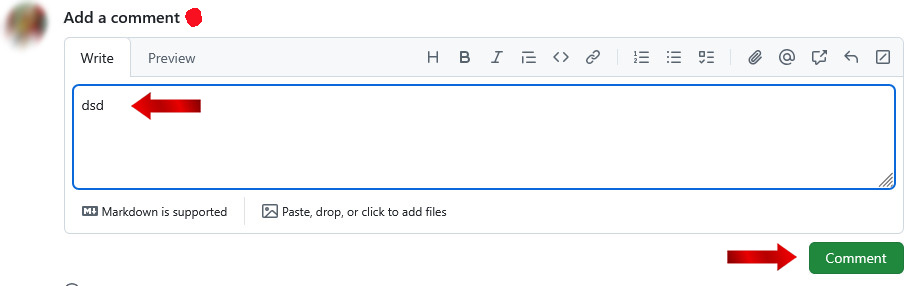
VERY important: Once you have thoroughly tested a PR, you should also leave a positive review so that everyone knows that this "PR" works well and can soon be incorporated into the JoomGallery core.
Don't worry, just write your opinion; there's not much to consider. The better you describe the error, the system you are working with, and what you think is happening, the better for the developers.
-----------------