What is a watermark? (General):
Watermarks are a process in which a logo or text is "placed" over an image file (or document).
It is an important process for copyright protection as well as for the marketing of digital work results.
How do I insert a watermark in JoomGallery 4:
First you need a watermark file. This should be a transparent .PNG file if possible. You can upload and select this file directly in the JoomGallery configuration. Alternatively, you can also use the JoomGallery logo.
Now an important decision follows:
Should the watermark be inserted for the "static" image types or for the "dynamic" image types?
If you insert it for the "static" image types: Then the watermark will be permanently merged with your images and can therefore no longer be removed!
If you insert it for the "dynamic" image types: Then the watermark will only be inserted when it is displayed in the frontend. Since you can change the configuration at any time, the watermark can be changed again or switched off completely.
Here is the description of the necessary configuration. For our example, the following applies...
The following specifications apply to our example:
- Insert only for the "dynamic" image types
- The watermark should appear in the original and detailed image
- The small thumbnail should remain without a watermark and thus save computing power on the server
The configuration takes place in the tab General Settings >> Image Processing
1 - Activate dynamic processing for the original image
2 - Configure the settings
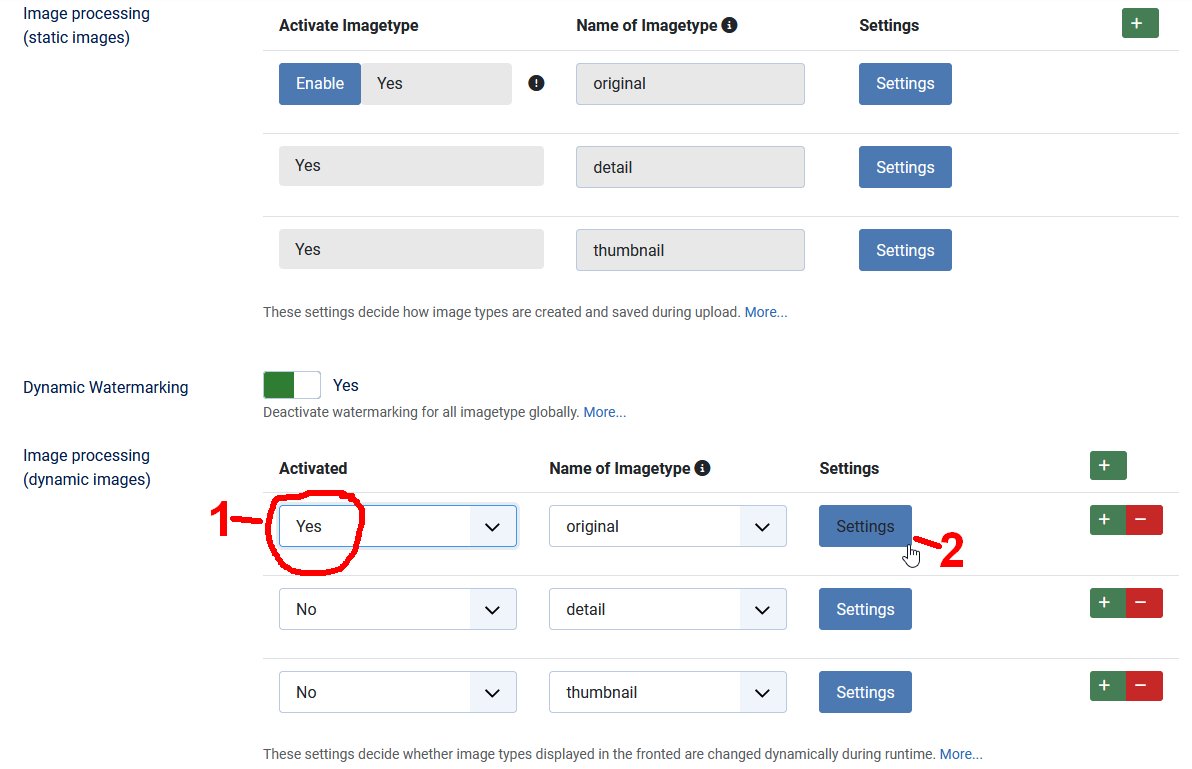
In the window, the watermark for the image type (original) is first activated. Then the setting options appear:
- Where on the image should the watermark appear
- How large should the watermark be in relation to the image?
- How high should the opacity of the watermark be?
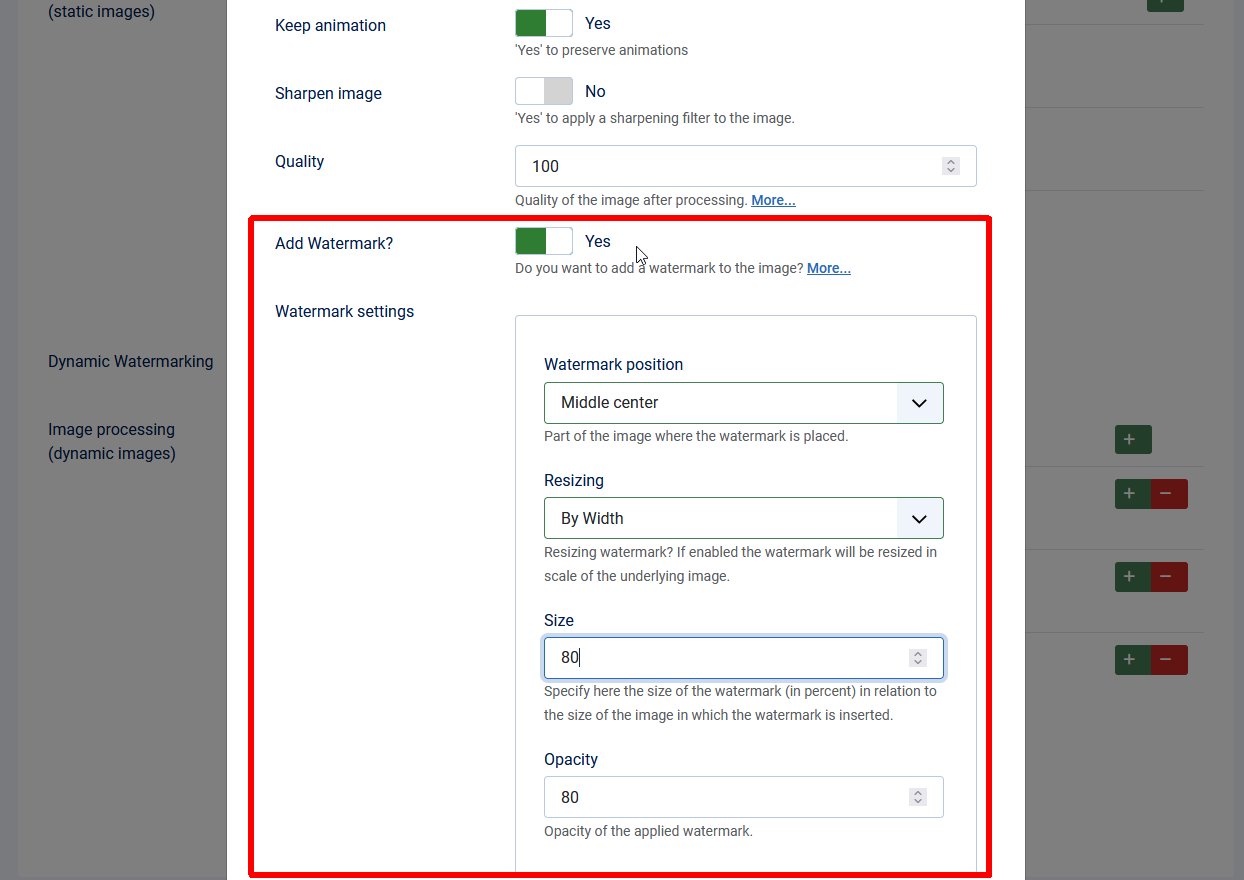
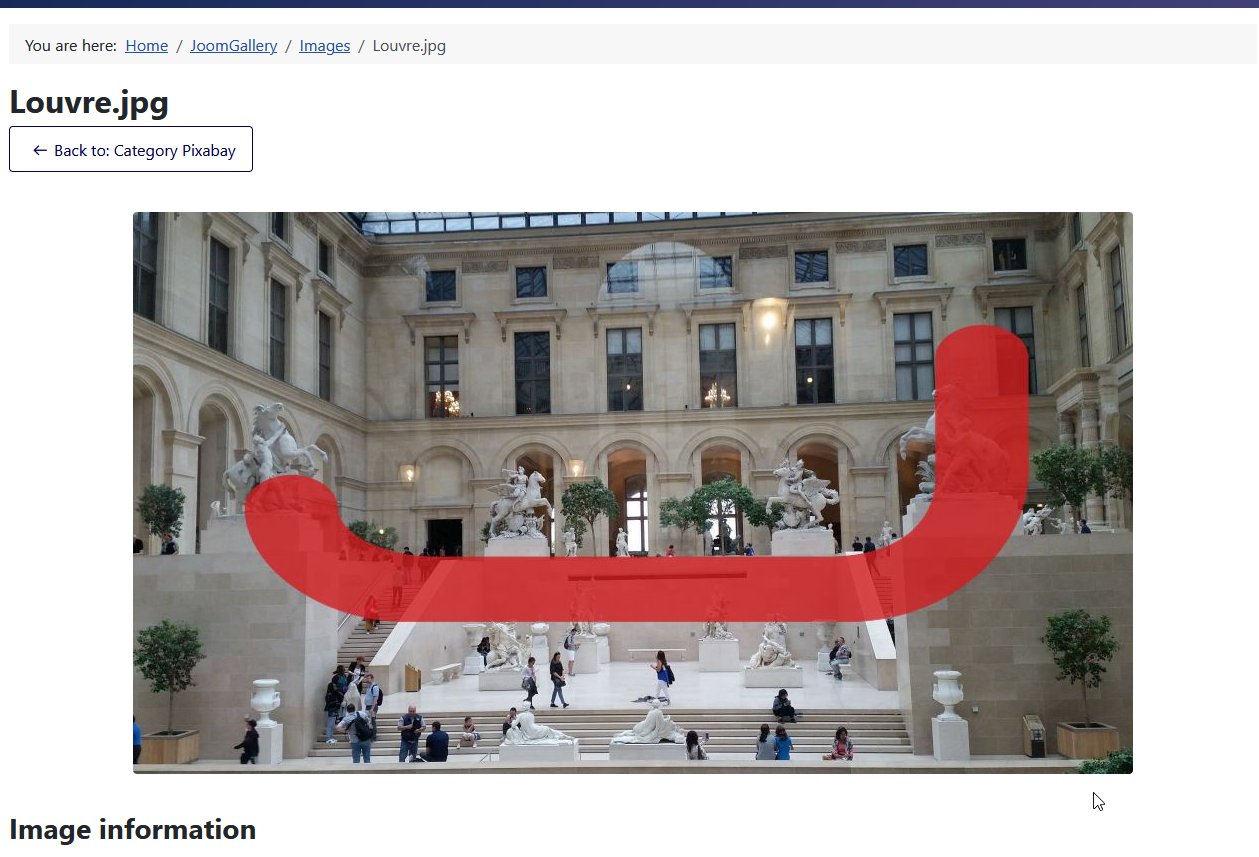
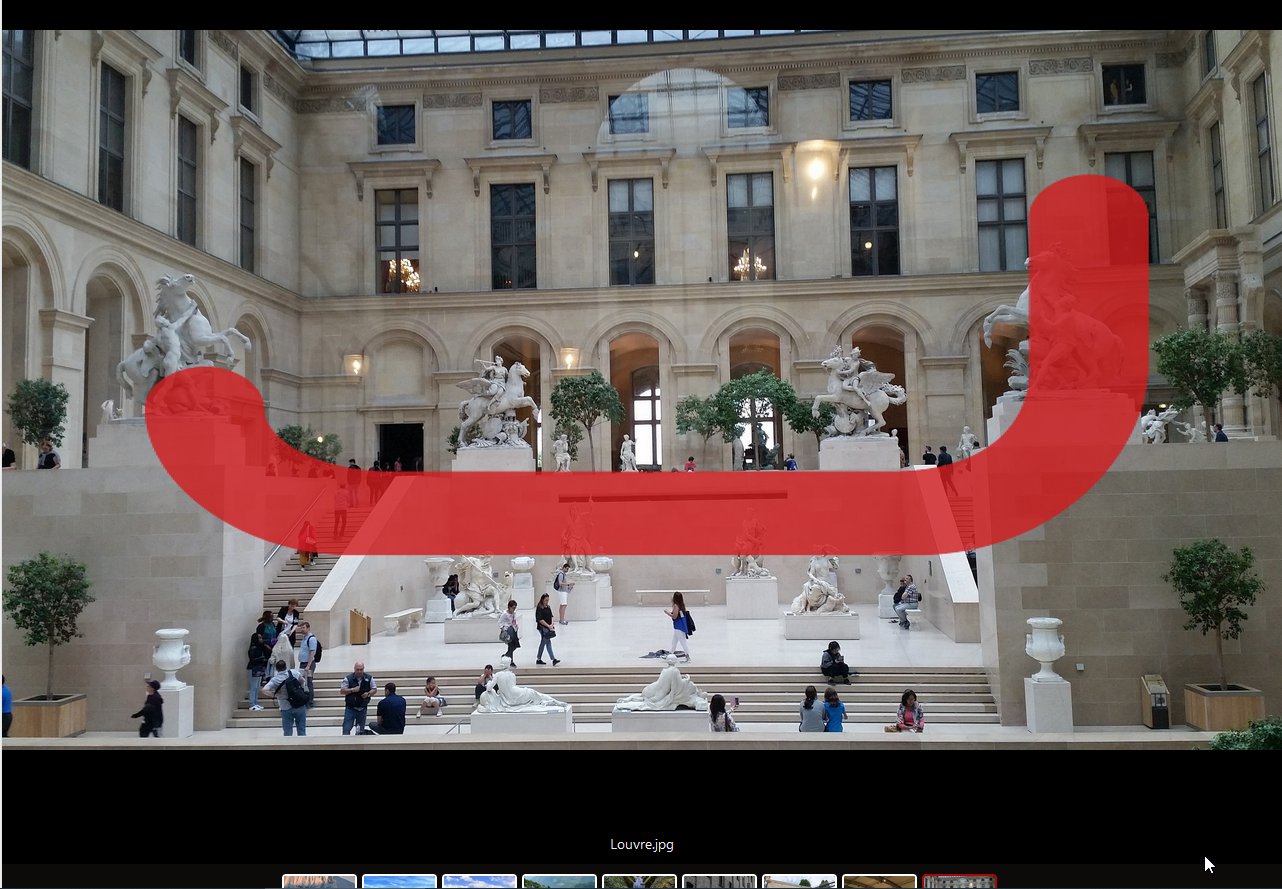
In our example, we place the watermark in the middle of the image.
It should take up 80% of the image width.
With Opacity=80, the watermark is clearly visible, the background only shows through slightly.
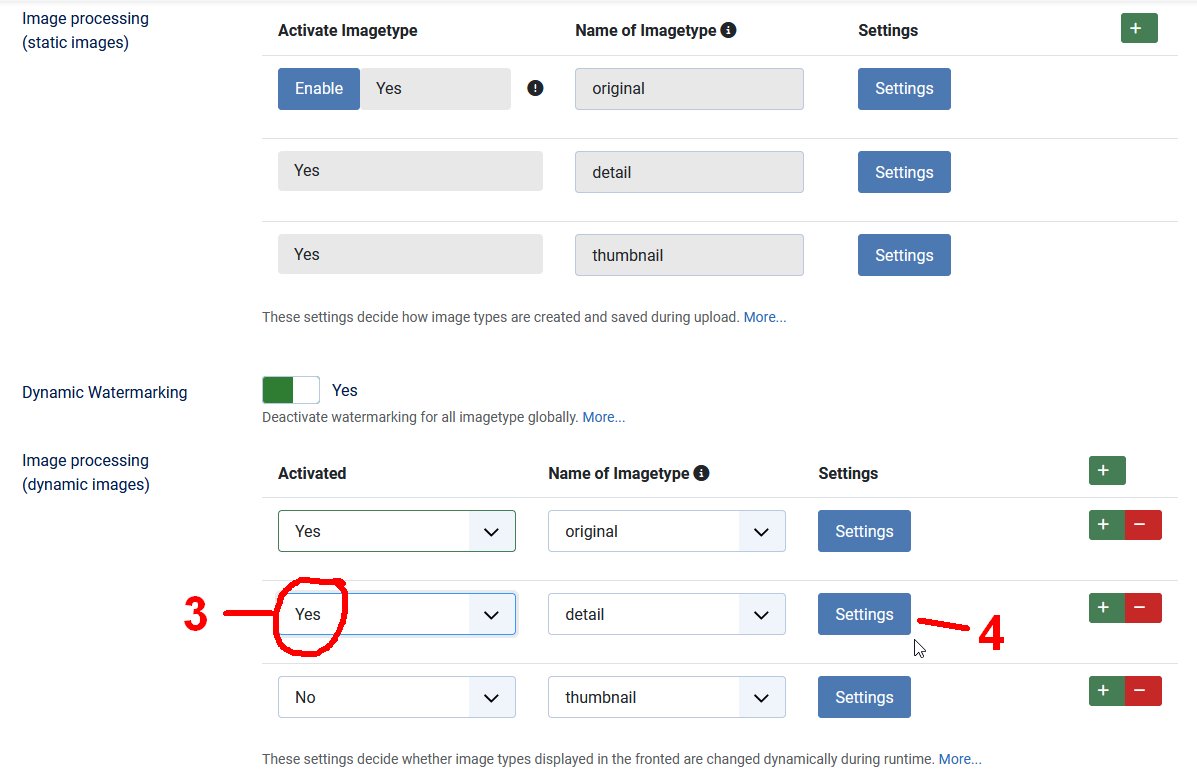
We do the same for the detail image:
3 - Activate dynamic editing for the detail image
4 - Configure the settings
In our example, we make the same settings for the detail image as for the original image. Alternative settings are of course also possible.
Then we save the settings and leave the configuration.
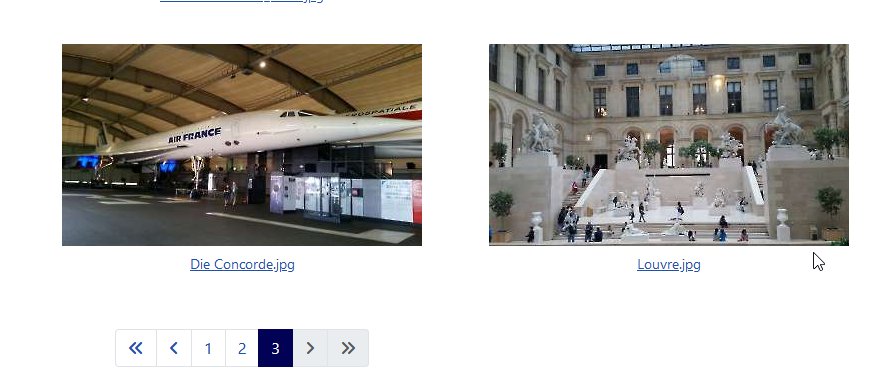
Since the dynamic settings affect all images in the frontend, the result is immediately visible there.
Thumbnail: no watermark
Detail image: with watermark
Original image: with watermark
But what if I only want the watermark on some of the images and not on all of them?
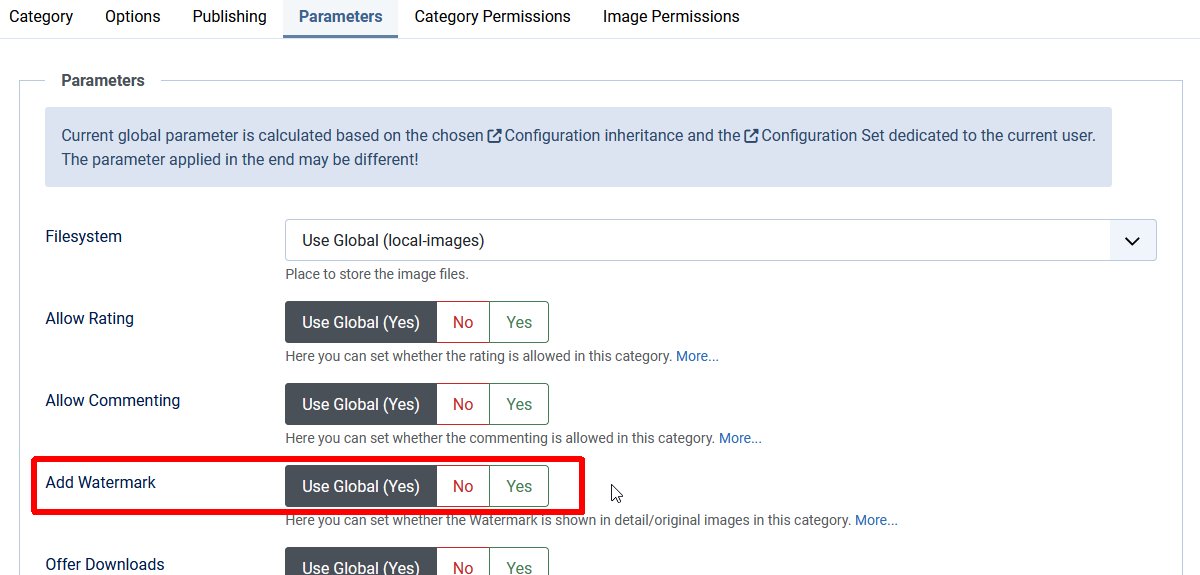
In addition to the basic settings in the configuration, it is also possible to switch the watermark on or off separately for each category.
You can find the setting in the Parameters tab of each category.
If we were to switch the watermark off here, all images in this category would appear without a watermark.