


Perhaps you simply want to display an image wall with your most recently uploaded images?
Or simply a random order of images as a "greeting" for your customers or friends?
This is possible with JoomGallery 4.
To do this, go to your Menus -> All Menu Items in the Joomla backend.
There you create a new menu entry - click the "NEW" button in the top left corner.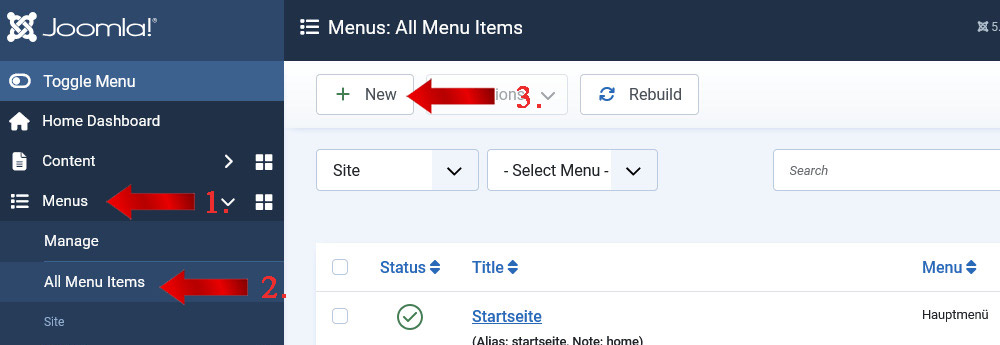
After assigning the title: for example, "Image Presentation," you now specify the menu type.
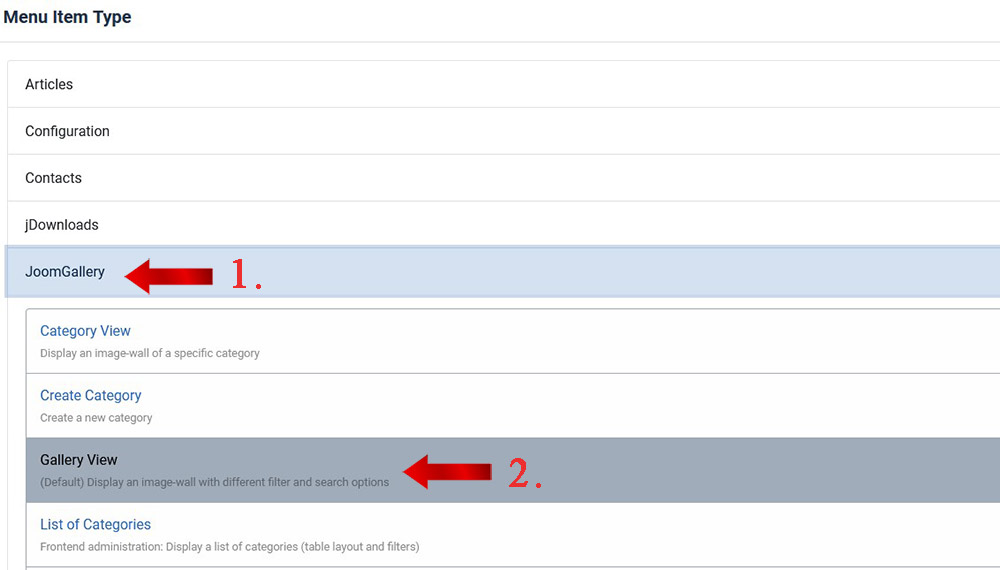
By clicking the blue "Select" button, you select "JoomGallery -> "Gallery View".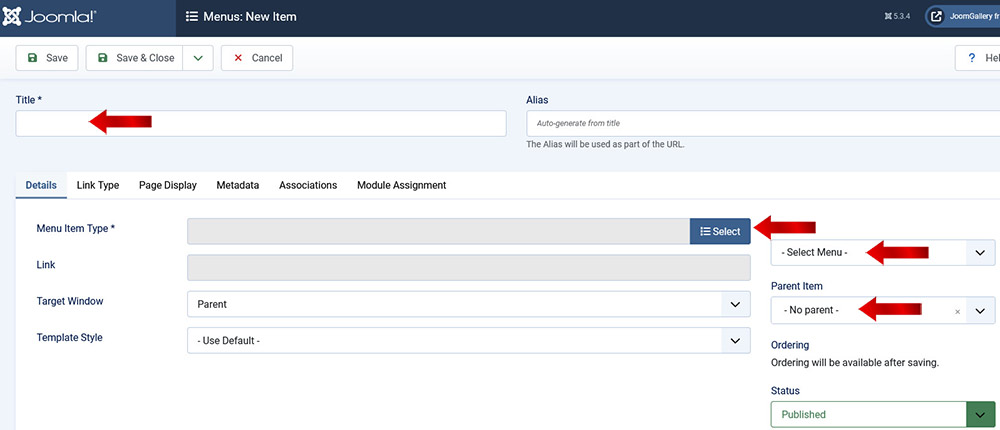
A new tab will appear in the form with the name "Gallery View."
There you can enter a heading or other information in the "Description" field. Theoretically, displaying a Joomla module is also possible. These things will then be displayed ABOVE the image wall!
Now you have to select the MENU on the right-hand side as usual in the "DETAILS" tab, and then whether there should be a parent entry or a main entry. Further Joomla-specific settings are available and can be changed by you...
Don't forget the "Save & Close" button (top left) at the end.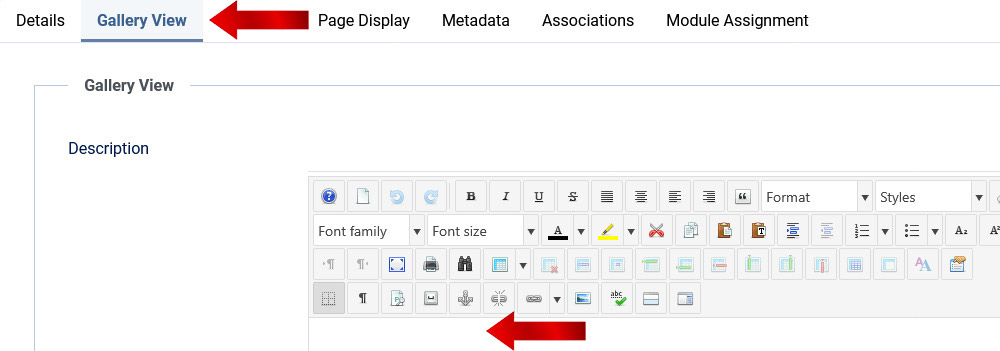
Now you can click on this menu entry in the frontend of your website and see how it looks.
Normally, you won't be satisfied yet and will want to make further changes to the view.
To do this, proceed as follows:
In the Joomla Backend under the JoomGallery menu, you will find the Configuration Manager(Configuration Set). The set you are using is probably the "Global Configuration"(or another configuration you have created).You can now click on this. 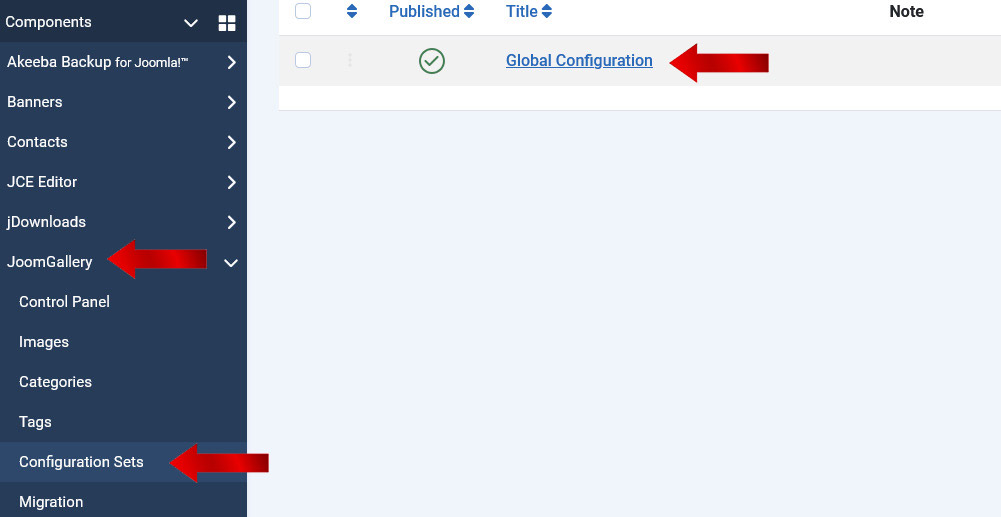
In the form that now opens, you will find two rows with different tabs.
In the first (or top) row of tabs, we select the "Frontend Views"(Frontend Views) and click on it.
Next, the "Gallery View" tab appears in the second (or bottom) row.
Once you've clicked this, you can now adjust various settings for your gallery wall a little further down. 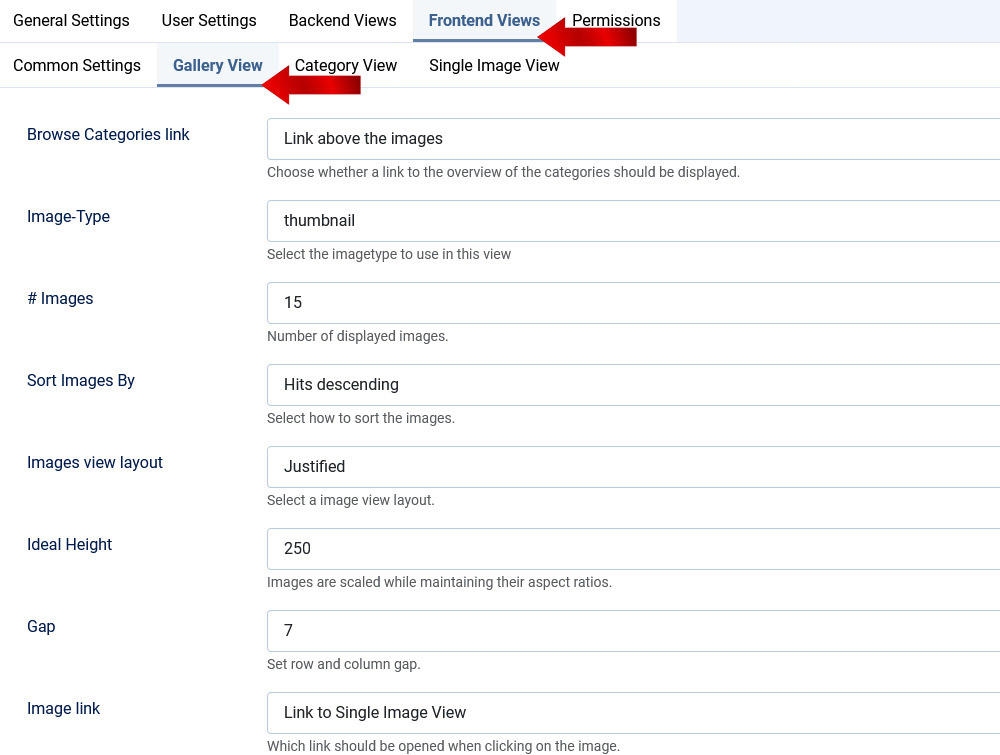
I'll only briefly discuss two of these settings here.
There are also descriptions in the settings themselves that tell you a lot about these changes. Don't forget to "Save" the form at the end!
- Link to the categories:
Probably the most important button. A button will now be created in the frontend of your website that links to all your "JoomGallery categories." Here you can set whether the button should be displayed "above" the image wall, "below" the image wall, or not at all.
- # Images:
With this setting, the number of images displayed per page corresponds to the number you entered.
For example, if you set "15," 15 images will be displayed. Starting with the 16th image, a second, third, etc. page will be created. Page numbering will now be visible.