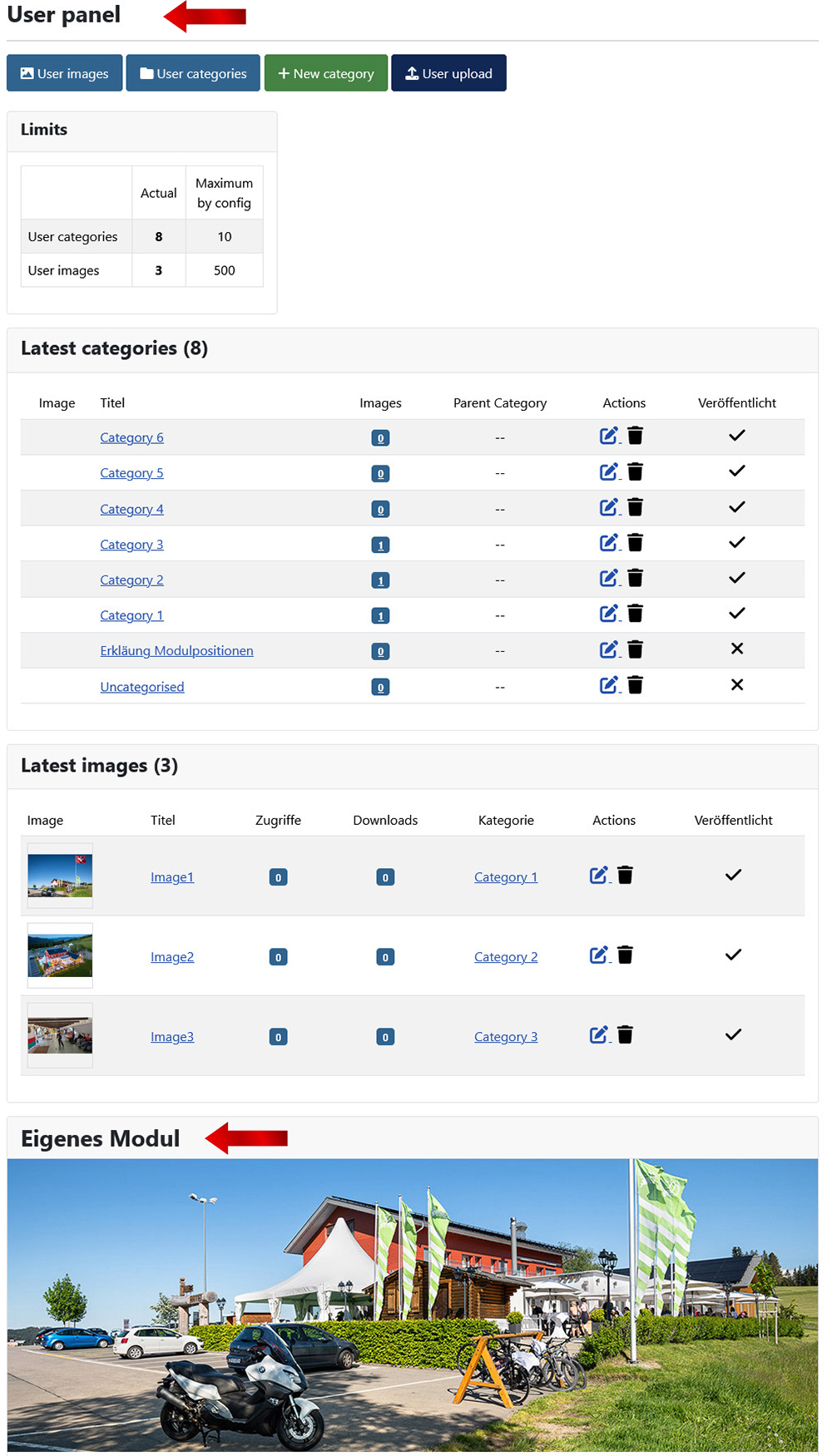
Since the update to version 4.4, JoomGallery 4 offers various module positions. If you want to publish, for example, a Joomla Core module, a JoomGallery module, or a third-party module within the JoomGallery, you now have the option to display it in different positions within the gallery.
We have compiled the currently available positions for you in the following list. Simply copy the code (example: jg_xxxxx_xxxx) from here and paste it into the "Position" field of your module.
Gallery View: Code:
Code:
- jg_gallery_top
- jg_gallery_bottom
Category view:
Code:
- jg_category_top
- jg_category_bottom
- jg_category_before_subcategories
- jg_category_before_images
Single image view:
Code:
- jg_image_top
- jg_image_bottom
- jg_image_before_info
Frontend user area View:
Code:
- jg_userpanel_top
- jg_userpanel_bottom
Frontend user image upload view:
Code:
- jg_userupload_top
- jg_userupload_bottom
Using the Joomla! Core module "Custom Module" as an example, we'll show you how to integrate it into the JoomGallery:
In the Joomla! backend, you can create a new module or open an existing one. Once the module contains content, in this example an image, you'll find the "Position" field on the right side of the editing window. There, you manually enter the text/code by clicking on the field (which either already contains a position or "none"). The JoomGallery module positions do not appear in the dropdown menu; only Joomla! module positions are displayed there. Templates displayed.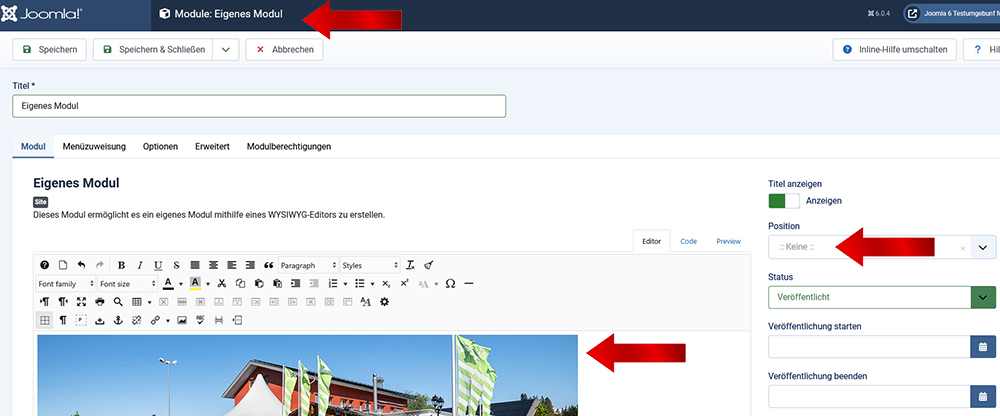
In our example, we now enter the following text/code (with underscores: _ ) using the keyboard: jg_category_top
By pressing the "Enter" key on the keyboard, the "Position" field accepts this input. Now you need to save the module in the top left corner! 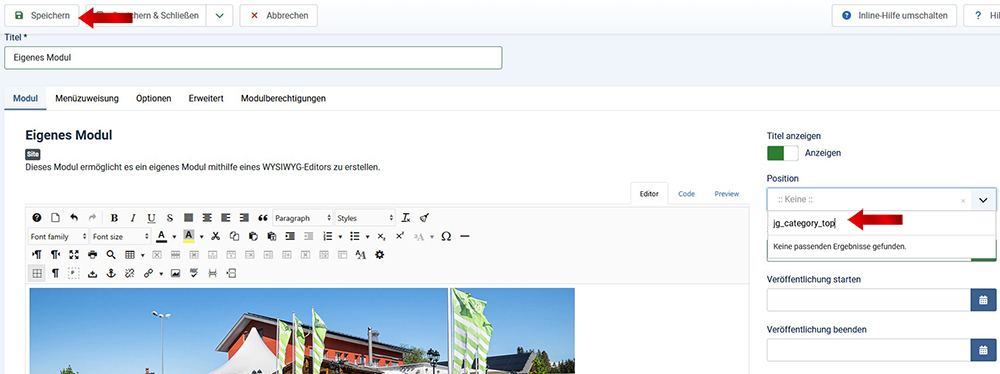
Now, in the frontend of your website, look at your image gallery in the category view!
The code just entered only applies to the category view in this example.
Note: For other views, use the corresponding code snippet from the list at the top of this post.
Our example code states: The desired module will be displayed at the top of the category view. If you select "bottom" instead of "top" in this example, the module will be displayed at the bottom of the JoomGallery!
Top: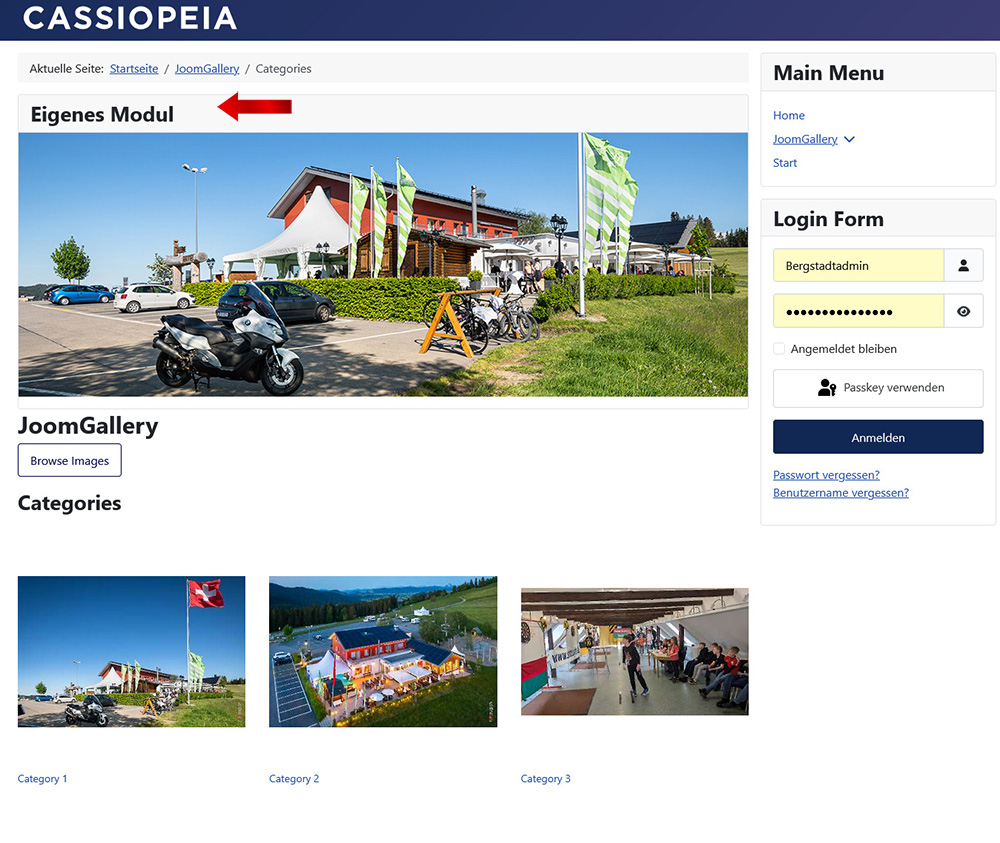
Here's another example:
The "Custom Module" is now inserted in the frontend area of the website, in the so-called "User Panel" of the JoomGallery -> at the very bottom (visible only after logging in with username).
The code for this position is: jg_userpanel_bottom :